Free & open source · macOS 26+
Snaps app icon

Screenshots that land on your clipboard.

Snaps is a tiny menu bar app for macOS. Press a shortcut, grab an area, a window or the whole screen, then paste it anywhere. A glass preview floats in the corner so you can drag it straight into any app, or double-click it to mark it up.

Download for macOS View on GitHub
✓ 100% free✓ Signed & notarized✓ Apple silicon & Intel✓ ~2 MB
Snaps in 50 seconds
How it works

Capture. Paste. Done.

No windows to manage and no files to dig out of your Desktop. Snaps stays out of the way until you need it.

1

Press a shortcut

Drag over any area, click a window, or grab the whole display under your cursor.

⌃⇧4
2

It's on your clipboard

Every capture is copied the moment you take it. Paste it into Slack, Messages, Figma, Docs, anywhere.

⌘V
3

Or drag the preview

A glass thumbnail floats in your corner. Drag it into any app or folder, or hover for copy, save, pin and open.

↖︎ drag
New in 1.0.2

Mark it up before you send it.

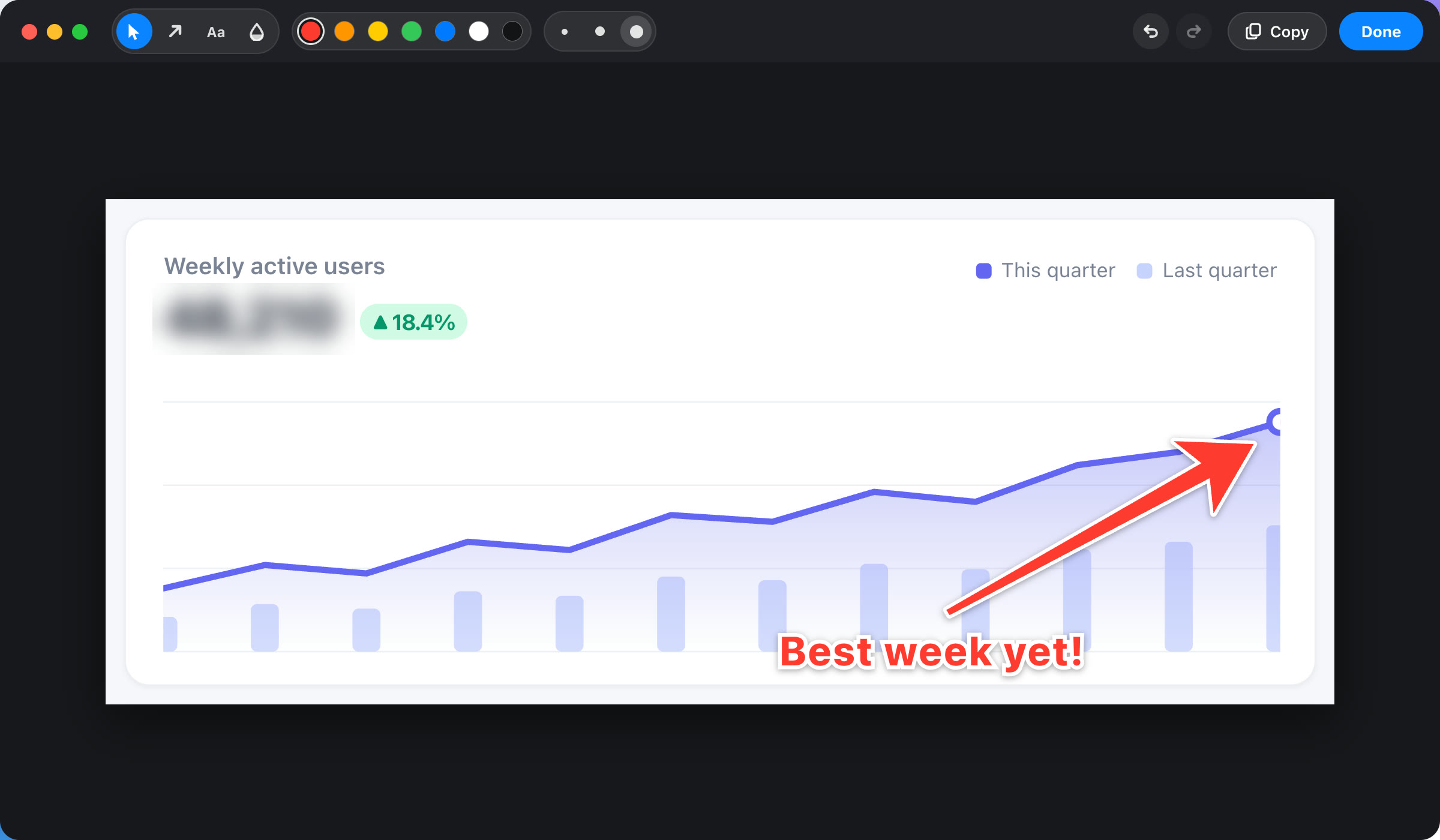
Double-click any preview or gallery card to open the editor. Point with arrows, add a note, blur what's private, then hit Done. The preview, the gallery and your clipboard all get the annotated version.

  • A
    ArrowsDrag from tail to tip. Shift snaps to 45°.
  • T
    TextClick and type. Seven colors, three sizes.
  • B
    BlurPixelated, then softened, so it can't be recovered.
  • ⌘↩
    DoneSaves at full resolution and copies it. ⌘Z undoes.

The editor was contributed by @lafraia in #1.

The Snaps editor with a red arrow pointing to the peak of a chart, the label “Best week yet!”, and the user count blurred out
Features

Small app. Thoughtful details.

Built natively for macOS with the Liquid Glass look, so it feels at home on your Mac.

Three ways to capture

Uses the native macOS selection UI, so it's fast, precise and familiar.

Area⌃⇧4
Window⌃⇧5
Full Screen⌃⇧3

Instantly copied

No save dialogs. Your capture is on the clipboard before you let go of the mouse.

✓ Copied⌘V

Drag & drop preview

A floating glass thumbnail you can drag into any app. It tidies itself away when you're done.

Gallery up top

Press ⌃⇧G and your recent captures drop down across the top of the screen. Click to copy, drag to share.

Your corner

Previews appear in whichever corner you like, set with one click from the menu bar.

Follows you across displays

Move your cursor to another monitor and your previews hop over with it.

Private by design

  • Never connects to the internet
  • No account, analytics or tracking
  • Captures stay on your Mac
  • Open source, so you can read every line
Shortcuts

Muscle memory, your way.

Sensible defaults that don't clash with the built-in macOS screenshot keys. Change any of them in Settings.

AreaDrag to select any region
⌃⇧4
WindowClick any window to capture it
⌃⇧5
Full ScreenThe display under your cursor
⌃⇧3
GalleryRecent captures across the top of the screen
⌃⇧G
In the editorSelect, arrow, text, blur · Done
VATB⌘↩

⌃ Control · ⇧ Shift. Everything is also one click away in the menu bar.

The fine print

Totally free. Forever.

Snaps is a free, MIT-licensed open source project. There's no trial, no pro tier and no catch. Download it, use it, fork it.

No account
No subscription
No ads
No tracking
Open source
FAQ

Questions, answered.

Is it really free?

Yes. Snaps is free and open source under the MIT license. There are no paid features, no accounts and nothing to upgrade to.

Which Macs does it run on?

Any Mac running macOS 26 or later, Apple silicon or Intel. It's a universal app of about 2 MB.

Why does it ask for Screen Recording permission?

macOS requires it for any app that captures the screen. Allow Snaps in System Settings → Privacy & Security → Screen & System Audio Recording, then relaunch it. Snaps never records video or sends anything anywhere.

Is it safe to install?

Every release is signed with an Apple Developer ID and notarized by Apple, so it opens without Gatekeeper warnings. The full source is on GitHub if you'd like to check it, or build it yourself.

Where do my captures go?

To your clipboard, always. Unsaved captures live in a private cache for 7 days so the gallery can show them. Turn on Save to folder in Settings to keep a copy on your Desktop or any folder you choose.

Can I annotate a screenshot?

Yes. Double-click the floating preview or a gallery card, or click its pencil button, to add arrows, text and blur. Done saves the annotations into the capture and copies it. To open every capture in the editor automatically, turn on Open in the editor in Settings.

Can I change the shortcuts or where previews appear?

Yes. Open Settings from the menu bar icon to record new shortcuts, pick a preview corner, set how long previews stay, and toggle the capture sound, window shadows and launch at login.
Give your screenshots a shortcut.

Download for macOS

Free · macOS 26+ · Signed & notarized